.jpg)
Grab - Edit External Store ID
| Objective | Allows the POS providers to update the External Store ID (Mosaic Partner ID) |
|---|---|
| Audience | Product Development and Growth Teams (added members only) |
| User Access | Editor, Viewer |
How to edit External Store ID
- Log in on https://developer.grab.com using your Personal Grab account phone number
-
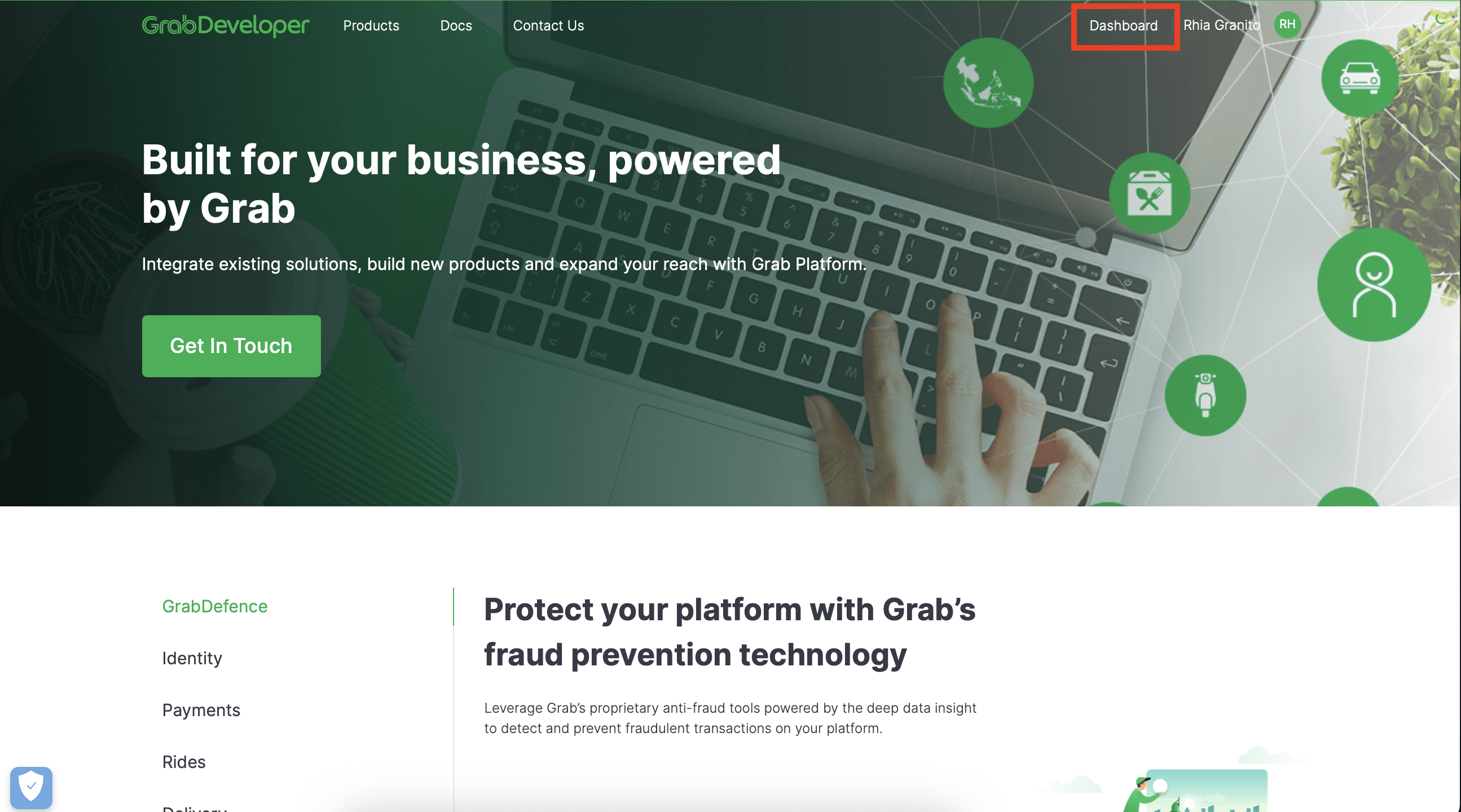
Go to Dashboard by clicking the "Dashboard" text at the upper right of the page
-
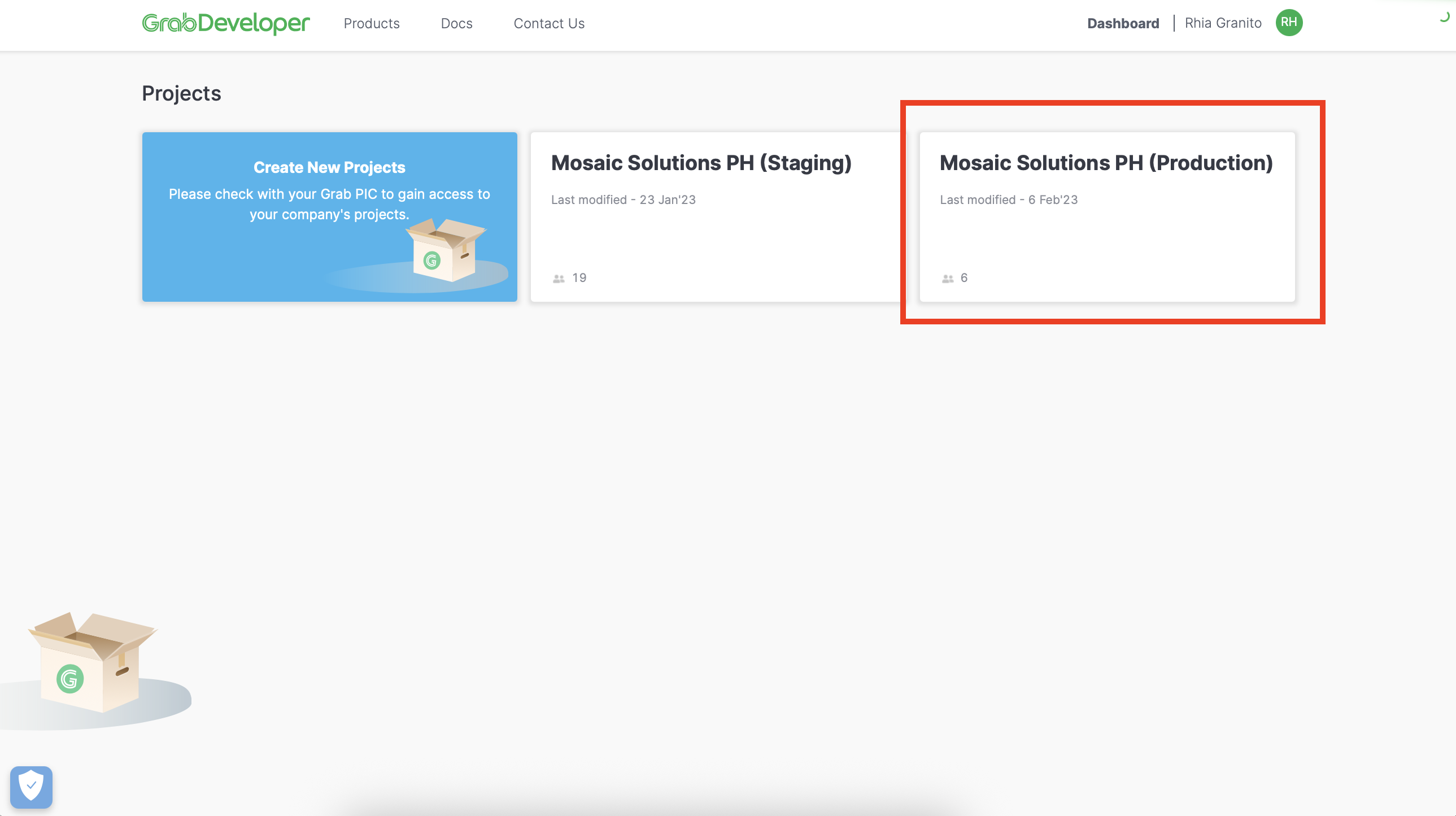
Go to the Project "Mosaic Solutions PH (Production) by clicking it
-
Go to the Store List by clicking "GrabFood POS Integration on the side menu then click the "Store Overview.
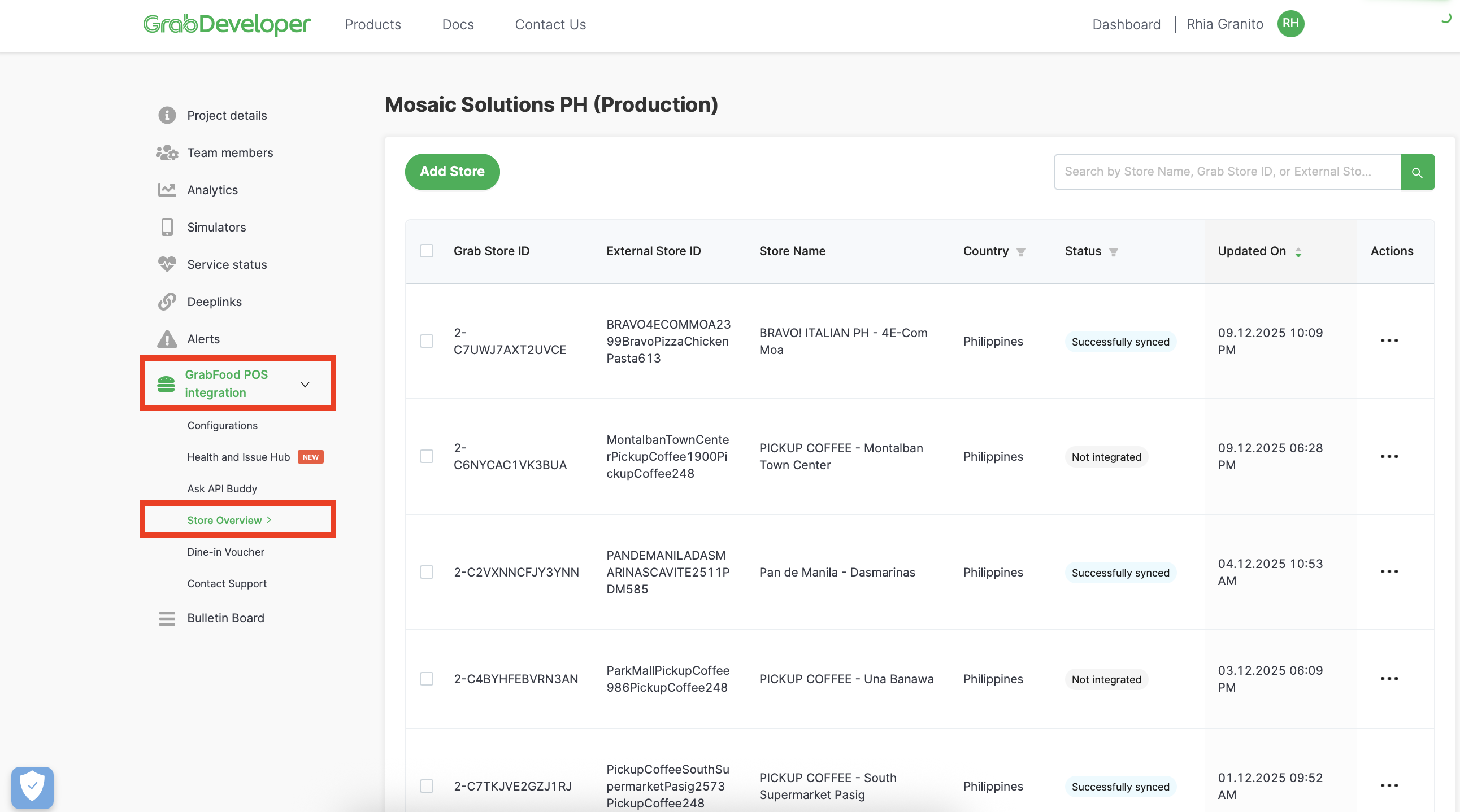
- Search by Store Name, Grab Store ID or External Store ID (Partner ID)
-
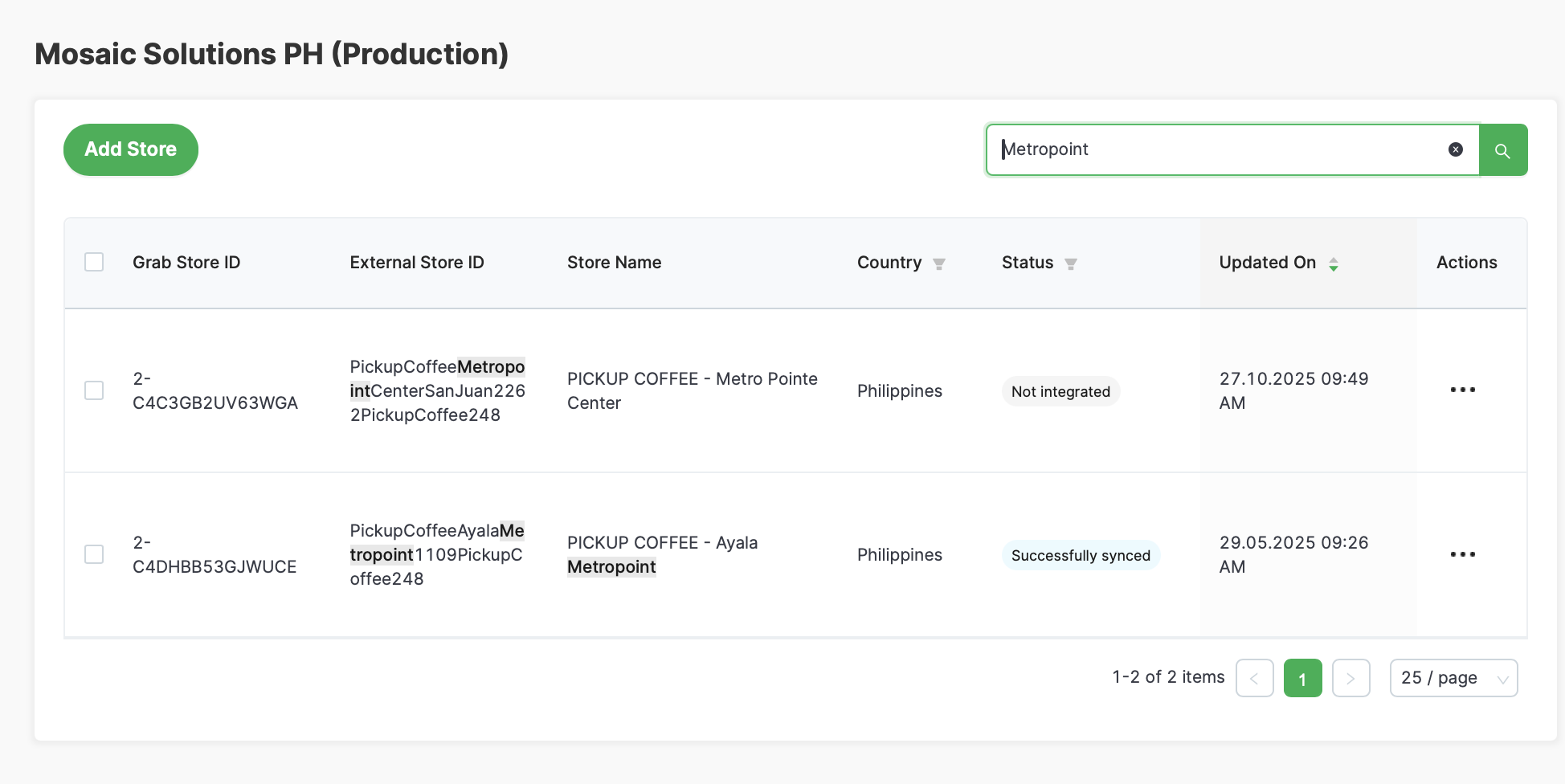
To Search by Store Name, type the store name on the Search field. The encoded text will be searched on External Store ID and Store Name.
-
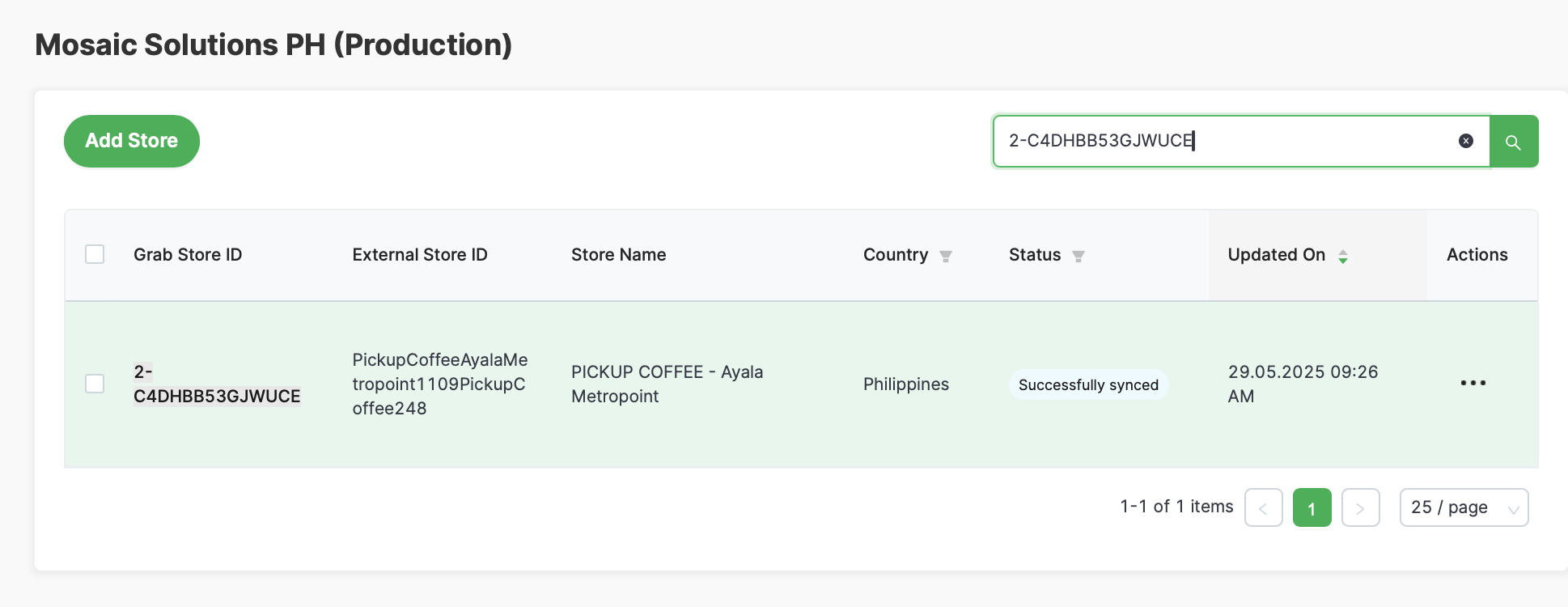
To Search by Grab Store ID, type the Merchant ID on the Search field.
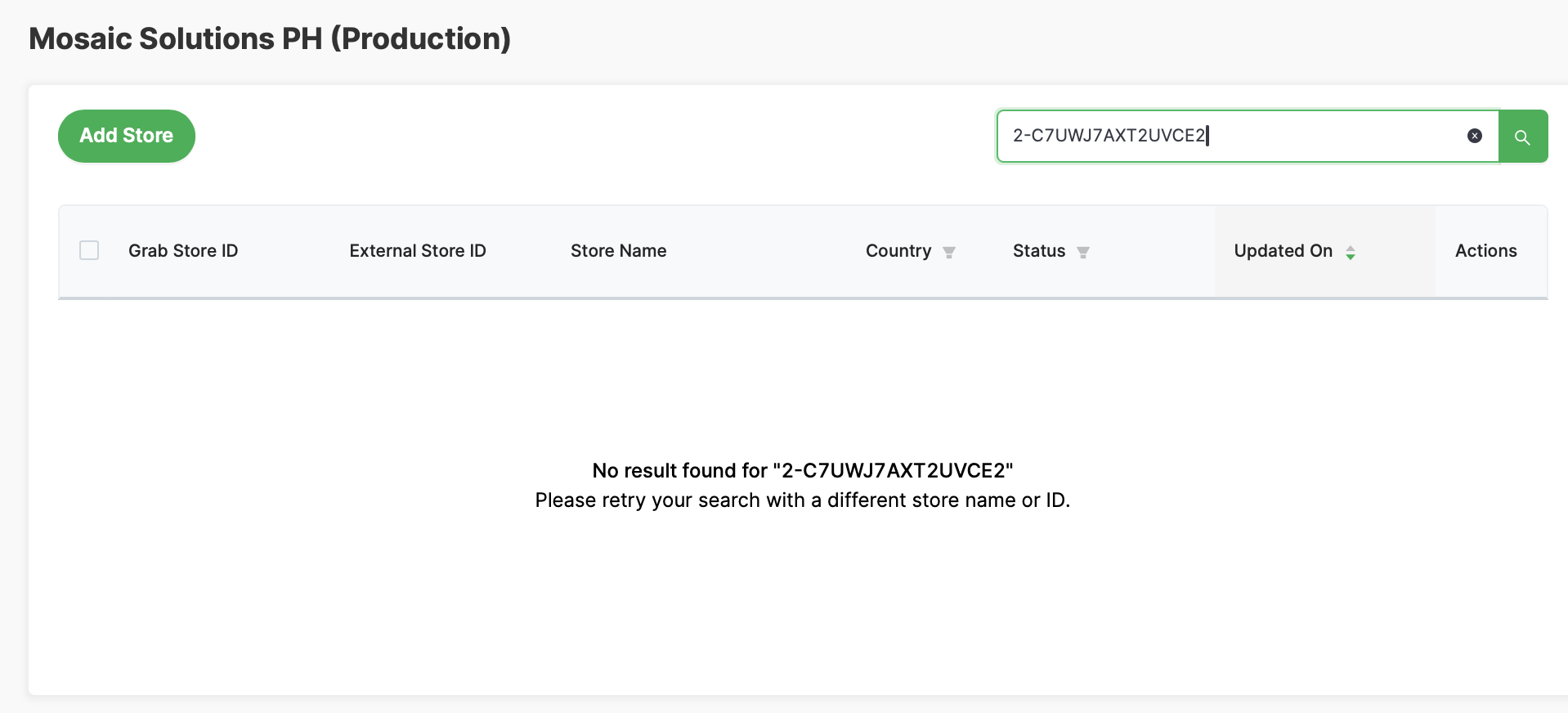
i. If Grab Store ID / Merchant ID is not found, it means the Grab account is not integrated
-
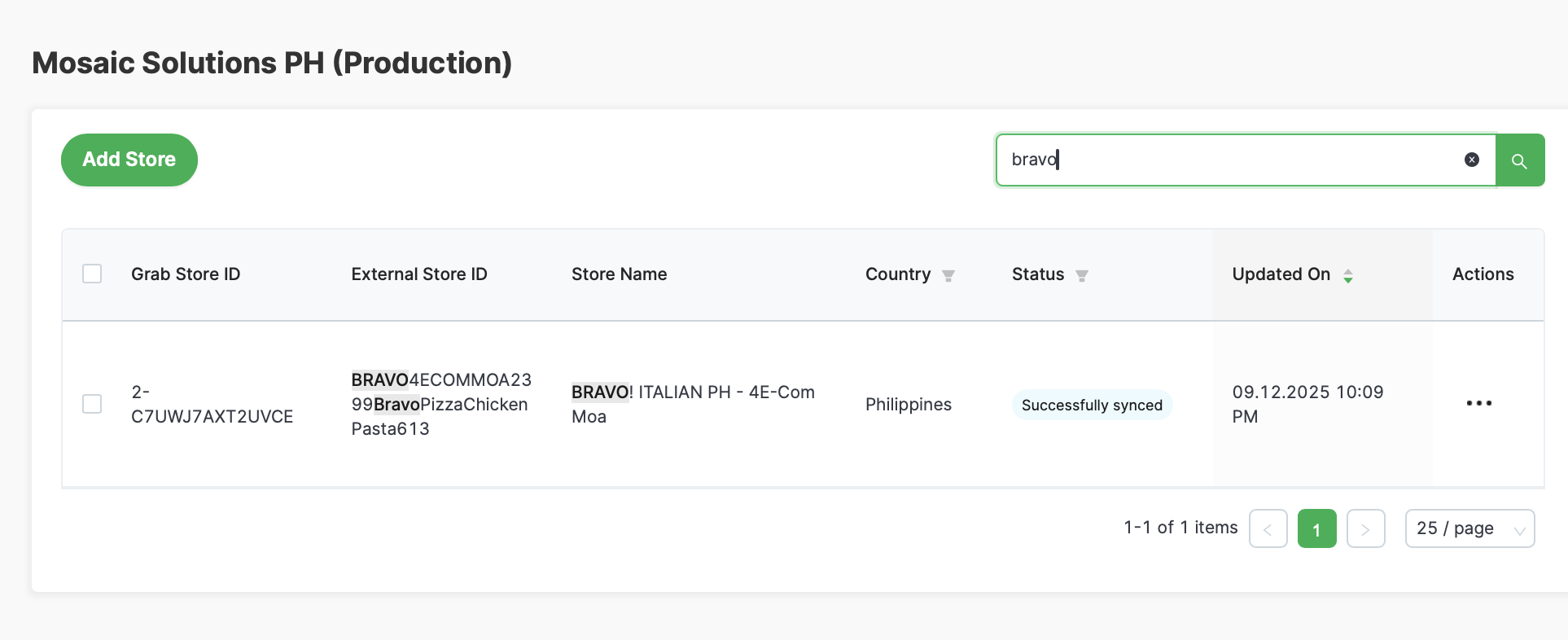
To Search by External Store ID (Partner ID), type the Mosaic Partner ID on the Search field. The encoded text will be searched on External Store ID and Store Name.
-
- Once you see the store that you want to edit, click on the three dots at the last column. It will show options to Activate integration, Edit or Delete the store entry. Click "Edit" to proceed on edit.

-
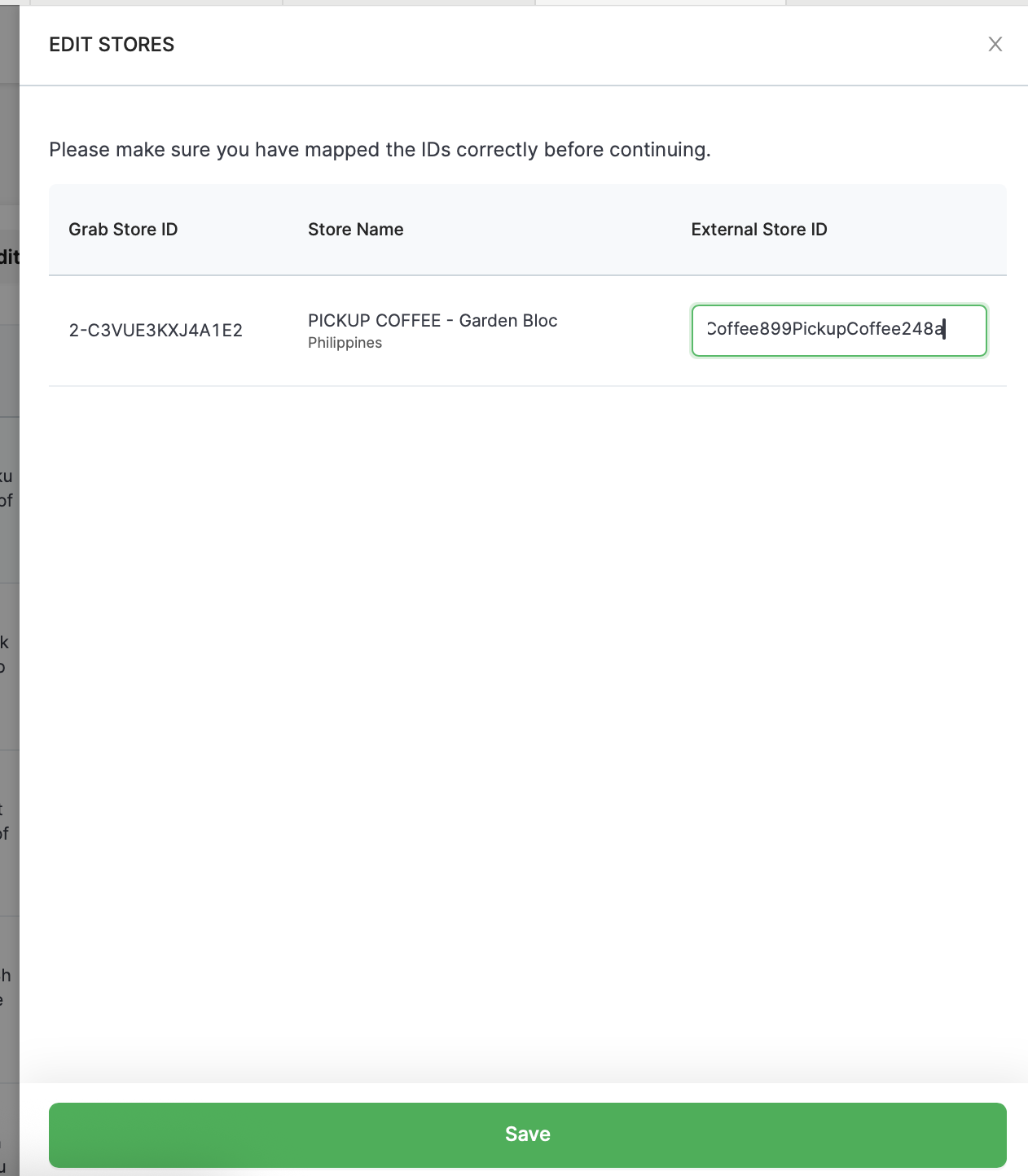
A new dialog will pop up on the screen. Apply the changes and Click "Edit" to save the changes.