.jpg)
Send Report to Email, Google Cloud Storage or Amazon Web Services Buckets
| Objective | Allows the POS admin users to receive sales reports by end of day daily and resend as needed |
|---|---|
| Audience | Ideally for Admin or Audit team |
| User Access |
Super Admin for the Bluesheets Configuration and Store Admin for the reports and recipient setup |
How to enable Send Report to Email Address:
- Bluesheets Configuration
- Log in on Back Office using Super Admin
- Go to General Settings then Integration Settings
- Select the Account and Location that you need to activate
- Select any Storage Type
- Tick Email
- Leave other fields empty
-
Click Save Changes to save the configuration
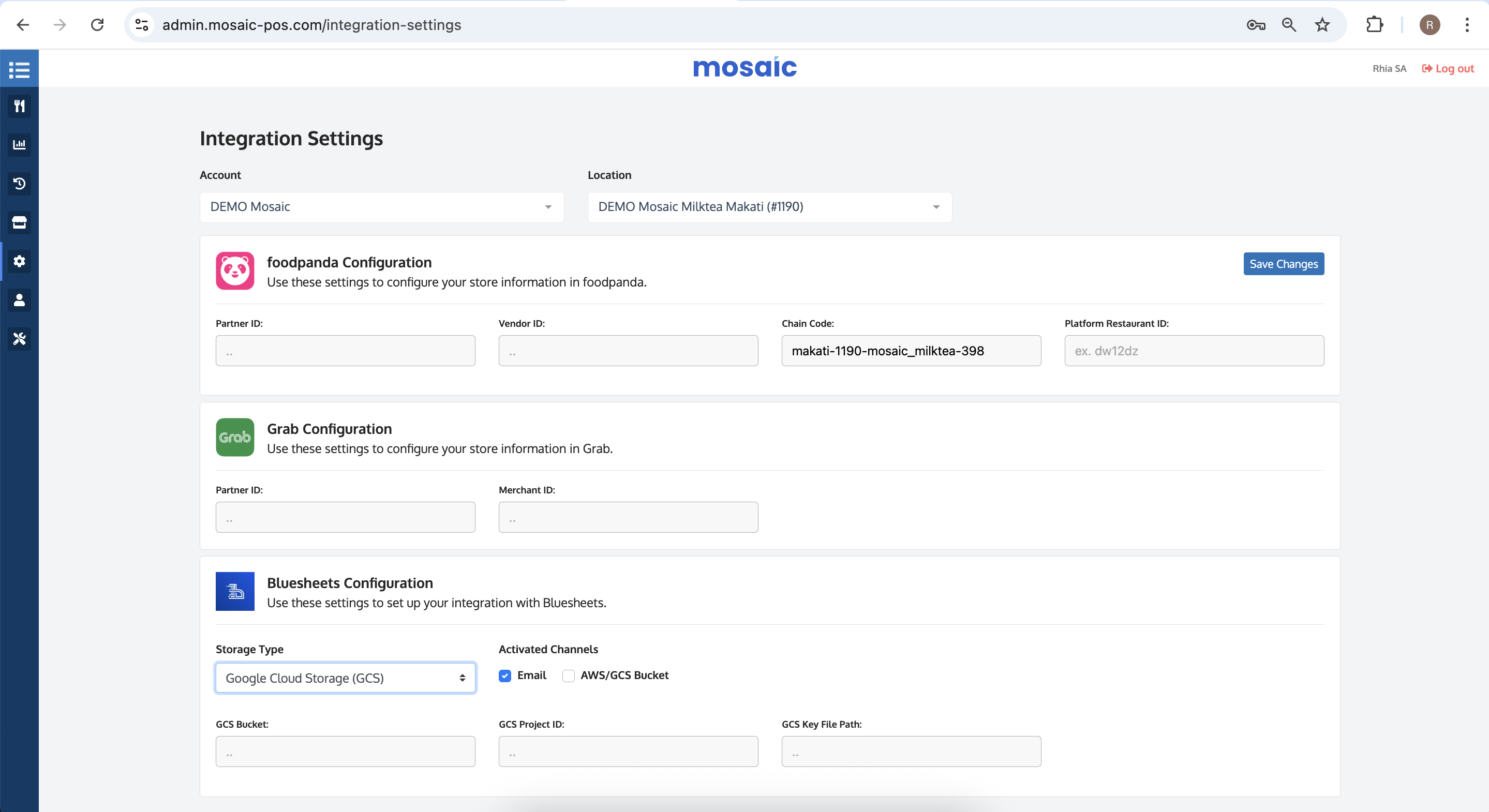
- Send Report
- Log in on Back Office using Store Admin
- Go to Reports then Send Report
- At the top right section of the screen, slide the toggle to activate the Send Report
- Select the sales reports that you want to send daily
- Input the email address(es) of the recipient(s) then click Save. Reports will be automatically sent upon store's day end.
- To test or manually send reports, select location(s) and business or POS date then click Resend. Reports will be sent immediately.

How to enable Send Report to Google Cloud Storage:
- Bluesheets Configuration
- Log in on Back Office using Super Admin
- Go to General Settings then Integration Settings
- Select the Account and Location that you need to activate
- Select Google Cloud Storage (GCS) on Storage Type dropdown
- Tick AWS/GCS Bucket. Clients can also use Email sending at the same time by ticking Email.
- Fill out the GCS Bucket, GCS Project ID and GCS Key File Path fields. These will be provided by the client.
- Click Save Changes to save the configuration

- Send Report
- Log in on Back Office using Store Admin
- Go to Reports then Send Report
- At the top right section of the screen, slide the toggle to activate the Send Report
- Select the sales reports that you want to send daily
- If Email is unticked on the Bluesheets Configuration, you can skip the Recipients list. Else, input the email address(es) of the recipient(s) then click Save. Reports will be automatically sent to the GCS upon store's day end.
- To test or manually send reports, select location(s) and business or POS date then click Resend. Reports will be sent immediately.
How to enable Send Report to Amazon Web Services:
- Bluesheets Configuration
- Log in on Back Office using Super Admin
- Go to General Settings then Integration Settings
- Select the Account and Location that you need to activate
- Select Amazon Web Services (AWS) on Storage Type dropdown
- Tick AWS/GCS Bucket. Clients can also use Email sending at the same time by ticking Email.
- Fill out the AWS Access Key ID, AWS Secret Access Key, AWS Default Region and AWS Bucket fields. These will be provided by the client.
- Click Save Changes to save the configuration

- Send Report
- Log in on Back Office using Store Admin
- Go to Reports then Send Report
- At the top right section of the screen, slide the toggle to activate the Send Report
- Select the sales reports that you want to send daily
- If Email is unticked on the Bluesheets Configuration, you can skip the Recipients list. Else, input the email address(es) of the recipient(s) then click Save. Reports will be automatically sent to the AWS upon store's day end.
- To test or manually send reports, select location(s) and business or POS date then click Resend. Reports will be sent immediately.