Rockwell Mall Accreditation

Summary
Date Accredited 06-Feb 2024 
Accreditation Frequency

Yearly 

New stores are for Auto-Rollout (means no need to undergo sales file review anymore, skip to IP credentials request and share GDrive folder) 

Other Documents Rockwell Mall Accreditation
Contact Person

edwardmodesto@rockwell.com.ph

rubyr@rockwell.com.ph

joanaf@rockwell.com.ph

Sales File / Data
Generated / Provided
  1. Daily Sales Data (text file) 
Sending Process
  1. Automatically sent to a shared GDrive Folder upon day end
  2. Store has to download and upload the files on Rockwell's locally shared network folder 
Front Office Changes
  1. Send status dialog will appear upon day end

Back Office Configuration Details and Provider
Shared GDrive Folder ID field

Provided by Mosaic Team (whoever will create the GDrive folder).

The ID of the Shared GDrive folder wherein sales files will be automatically sent upon day end

Tenant Code

Provided by the mall admin.

Serves as the unique identifier of the store location.

Activate sales file sending toggle

Tick it to enable sales sending.

Untick to stop sales file sending.

Activate for new store / location

The following steps should be done every time we have new locations to onboard:

  1. Client will send a request to Rockwell Mall admin for the Tenant Code.
  2. Client will provide a gmail account which will be used to access the sales file folder on GDrive
  3. Mosaic Team (Data Implem or Support) will create a new GDrive folder for the location and share with the provided gmail account
    1. Email Address: mallaccreditations@gmail.com
    2. Password: #MosaicOneTeam
    3. Put the new folder inside the designated mall folder:

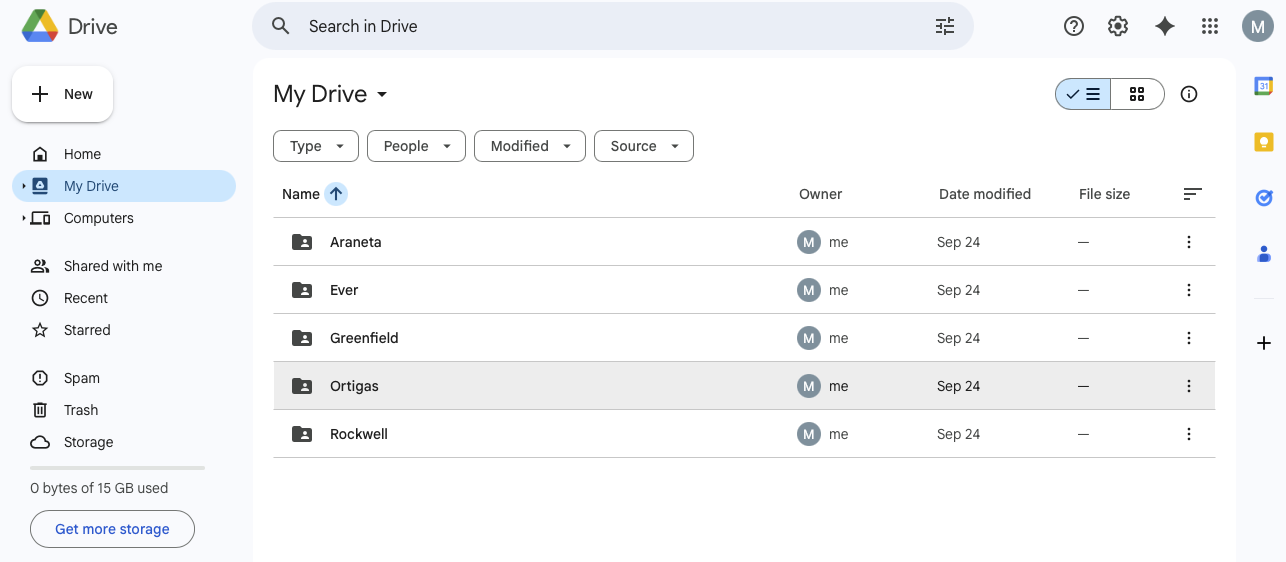
      For example: GDrive > Rockwell > Location Name on POS


  1. Once received, Store will send the Tenant Code to Mosaic Team (Data Implem) then Mosaic Team (Data Implem) will encode the details on the Back Office > Location details using Super Admin account. Select “Rockwell” on the mall dropdown field. Leave the “Activate Sales File Sending” ticked to start sending the sales files. 
  2. That’s it! Sales files will be automatically sent to the shared GDrive folder upon day end on POS Front Office. 
  3. Store will download the sales files from the shared GDrive folder and upload it to Rockwell's shared folder after every day end 
Did this answer your question? Thanks for the feedback There was a problem submitting your feedback. Please try again later.

Still need help? Contact Us Contact Us