.jpg)
Ever Sales File Sending
Activation Process on Management Level with Mosaic Team
The following steps should be done everytime we have new locations to onboard under Ever Malls:
- Client to send a request to Ever IT Team for the Entity Code, Project Code, Debtor Account Code and Sales Category
- Mosaic Team (Account Manager) to ask the Client for a gmail account which will be used to access the sales file folder on GDrive. The store should have access to this gmail account since they're the ones who will download the sales files.
- Mosaic Team (Data Implem) will create a new GDrive folder for the location and share with the provided gmail account
Put the new folder inside the designated mall folder:
For example: GDrive > Ever > Location Name on POS
- Mosaic Team (Data Implem) will encode the details on the Back Office > Location details using Super Admin account. Leave the “Activate Sales File Sending” ticked to start sending the sales files.
- Sales files will be sent to the GDrive folder upon day end. The client will download the sales files from the GDrive folder and manually send them to the local IP provided by Ever.
Laptop Configuration Process on Store Level with Ever IT Team
- Store should have a computer or laptop that is connected to the mall network. Ask for Ever's IT Team assistance for the connection setup.
- Ask for Ever's IT Team assistance on the IP address, shared folder username and password where the sales file will be put.
Daily Download and Send Process on Store Level
- Open Google Mail on any browser
- Log in using the gmail account that is also provided to Mosaic Solutions
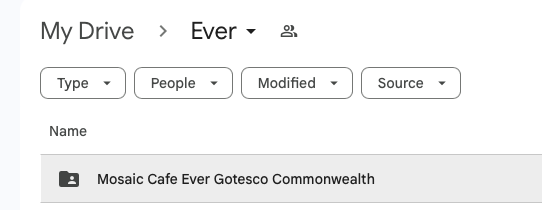
Once logged in, go to GDrive and look for the shared folder. Folder name should match the location name on POS. For example,
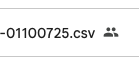
Every after day end, go to the shared folder and locate the sales file. Use the last 6 digits as reference - it's MMDDYY POS Date format. For example, for October 07 2025
- Download the sales files and save directly to the shared folder or save on any folder then move to the shared folder
- That's it! Ever Mall admin will get the sales file remotely.
