.jpg)
Grab - How to use the Grab Developer portal
| Objective | Allows the POS providers to track and manage Grab integrations |
|---|---|
| Audience | Product Development and Growth Teams (added members only) |
| User Access | Editor, Viewer |
Use Cases
| User Access | Use Case |
|---|---|
| Viewer, Editor | Grab - How to check the integration status on Grab Developer portal |
| Editor | Activate integration |
| Editor | Grab - Edit External Store ID |
| Editor | Grab - Deactivate Integration |
| Editor | Delete |
| Editor | Add members using Grab phone number |
How to check the integration status of stores
- Log in on https://developer.grab.com using your Personal Grab account phone number
-
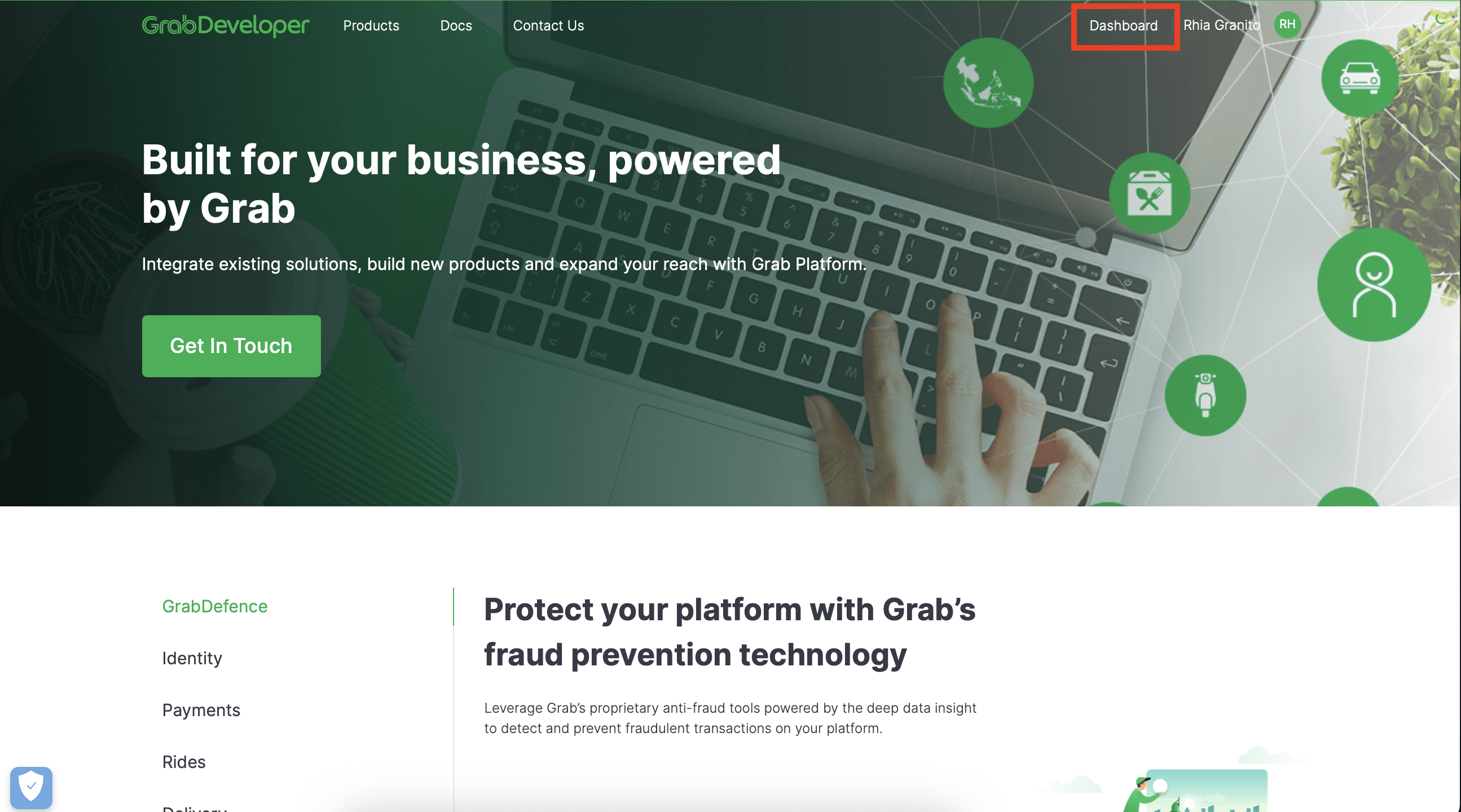
Go to Dashboard by clicking the "Dashboard" text at the upper right of the page
-
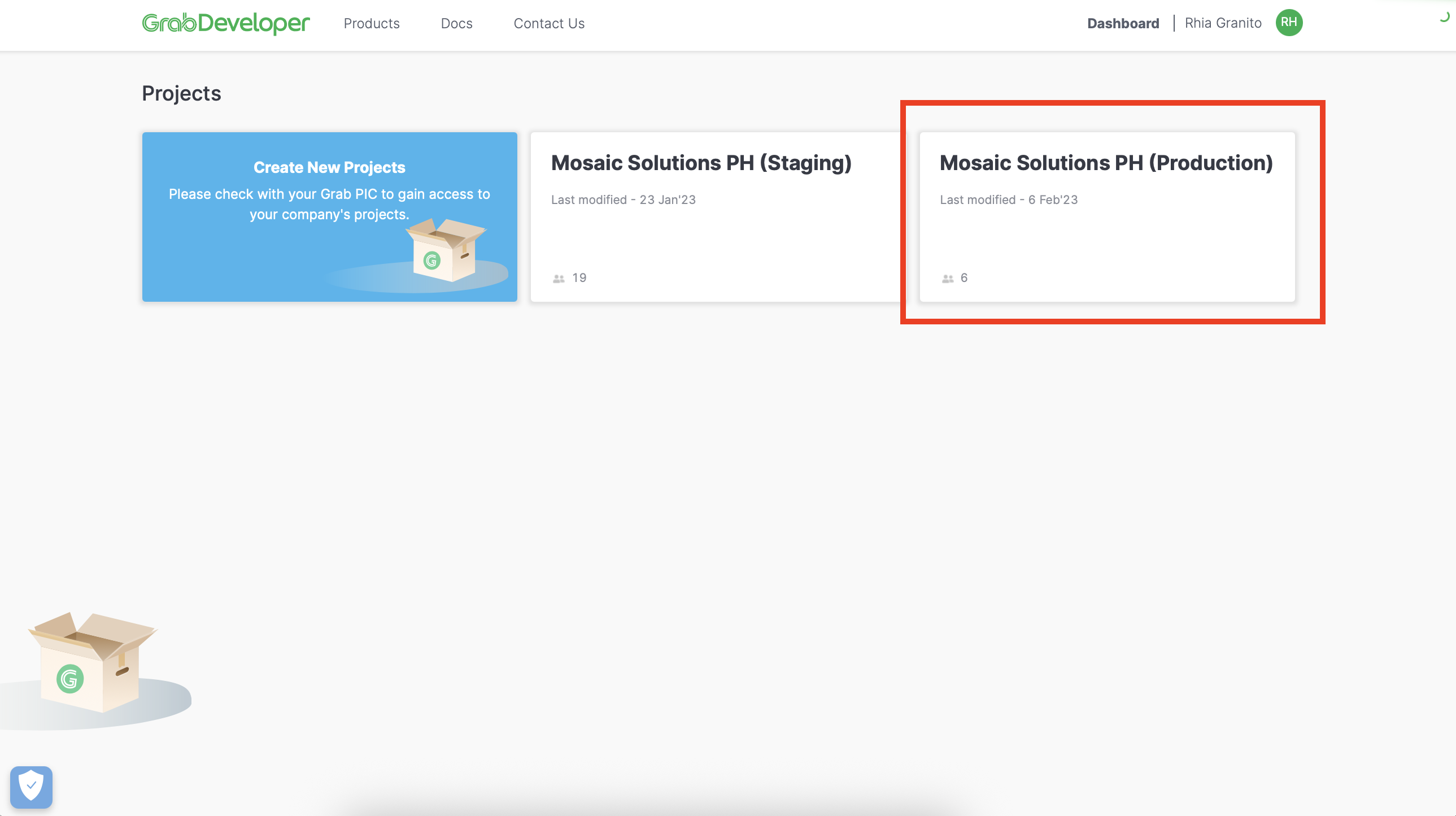
Go to the Project "Mosaic Solutions PH (Production) by clicking it
-
Go to the Store List by clicking "GrabFood POS Integration on the side menu then click the "Store Overview.
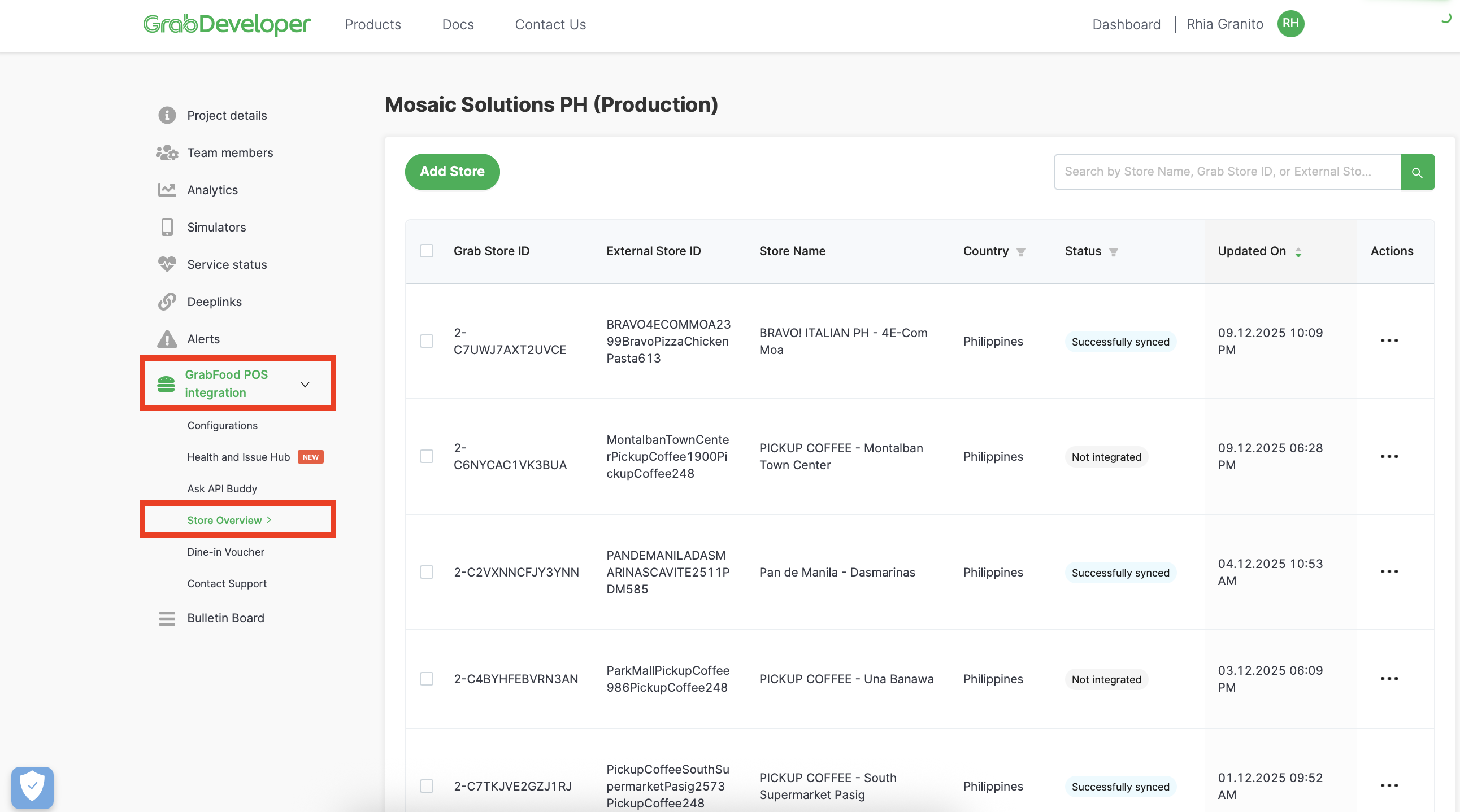
- Search by Store Name, Grab Store ID or External Store ID (Partner ID)
-
To Search by Store Name, type the store name on the Search field. The encoded text will be searched on External Store ID and Store Name.
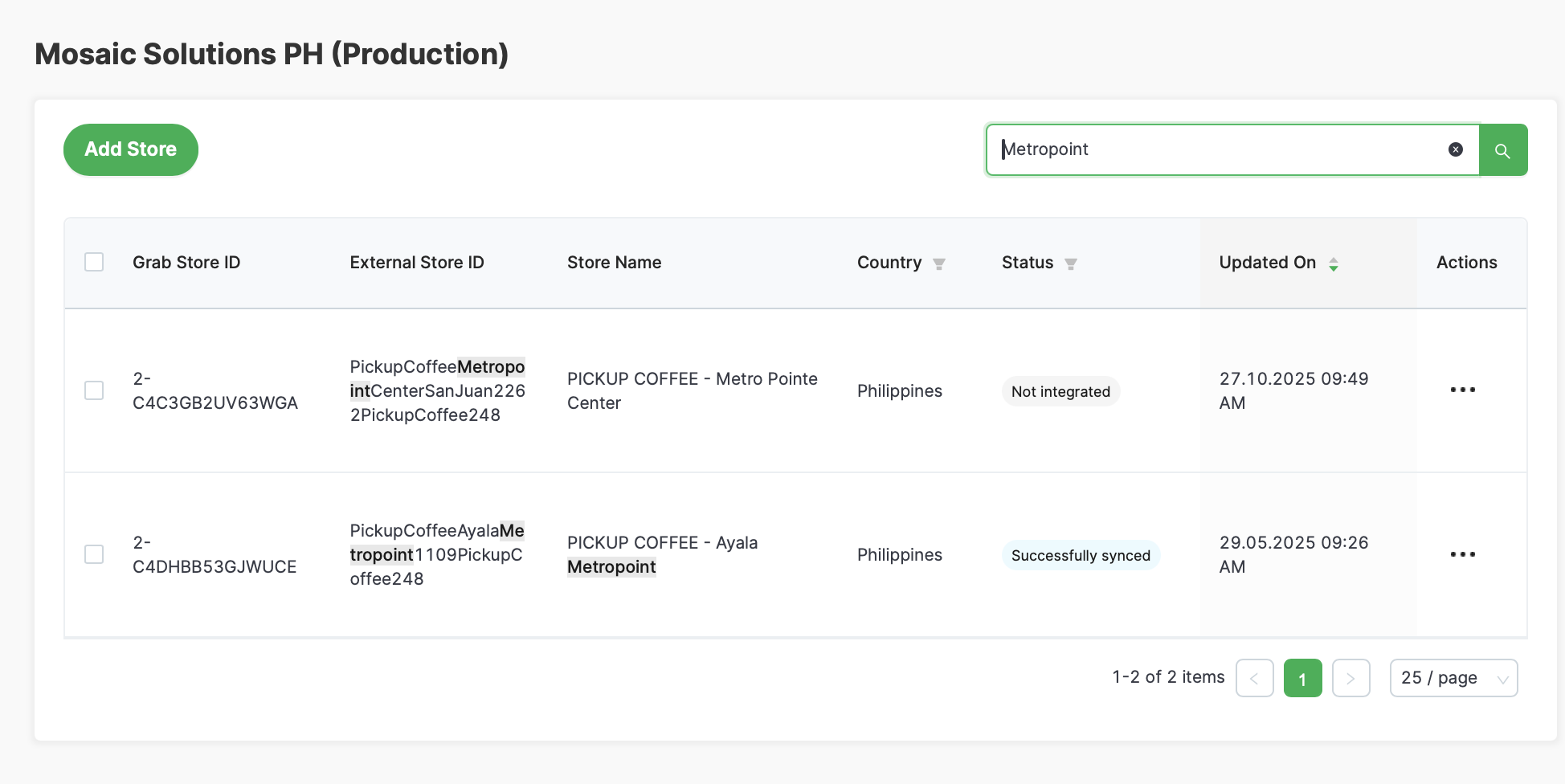
-
To Search by Grab Store ID, type the Merchant ID on the Search field.
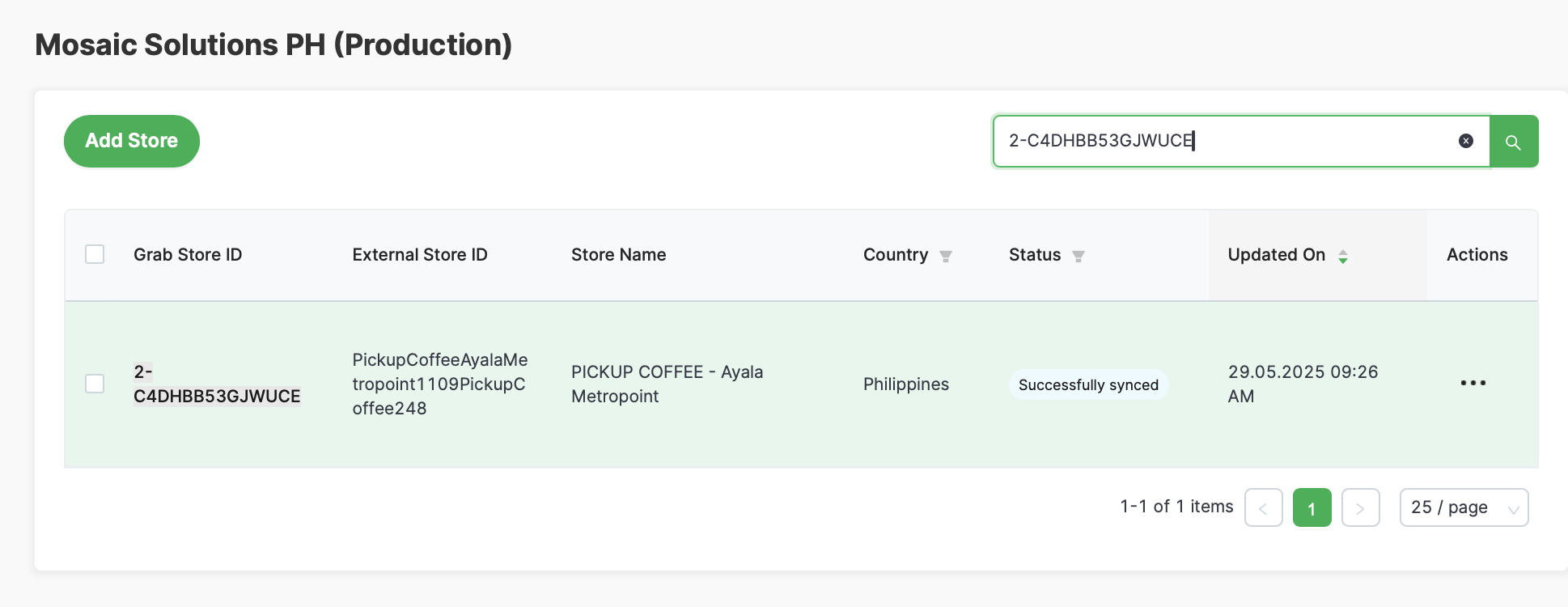
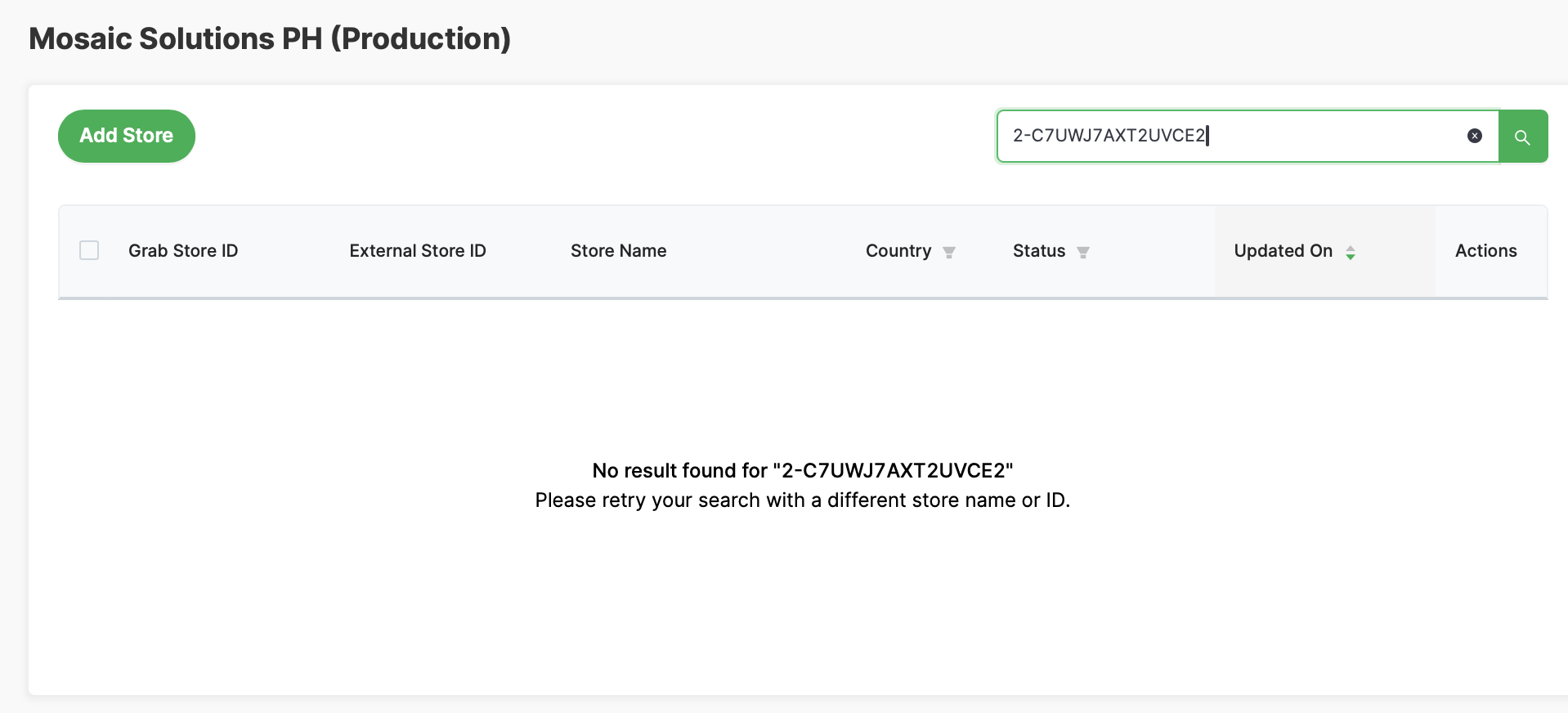
i. If Grab Store ID / Merchant ID is not found, it means the Grab account is not integrated
-
To Search by External Store ID (Partner ID), type the Mosaic Partner ID on the Search field. The encoded text will be searched on External Store ID and Store Name.
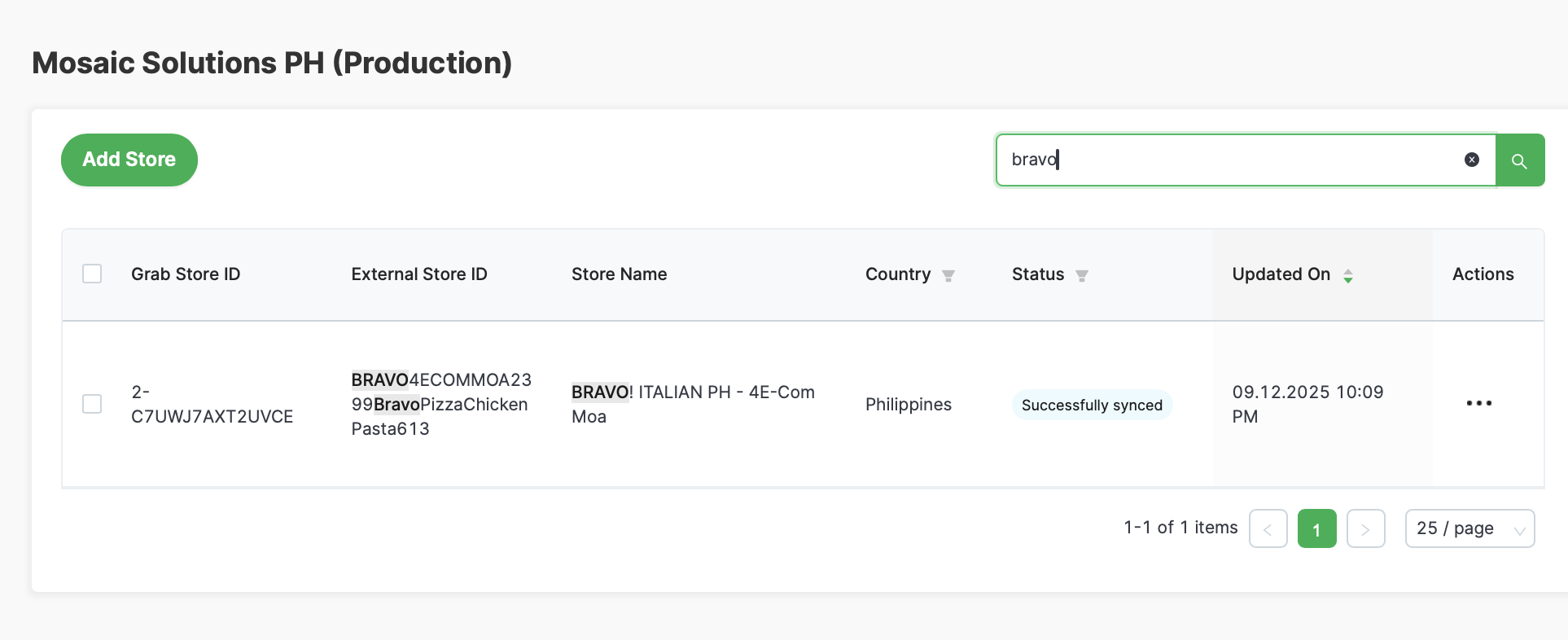
-
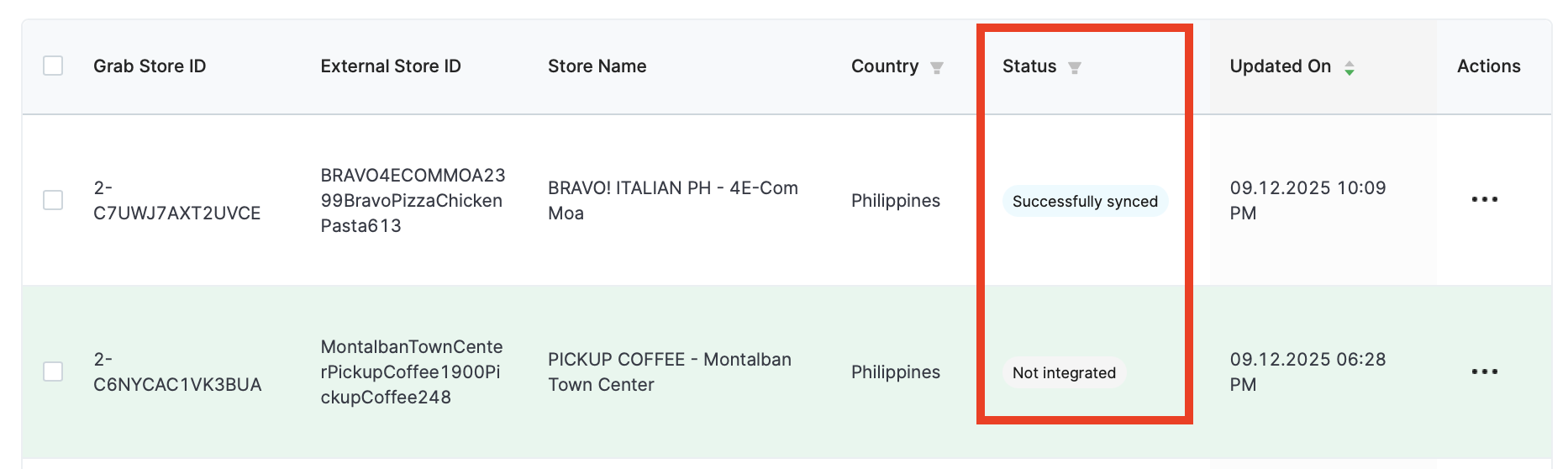
- Three status are available on the page:
- Sync in Progress = means menu sync is in progress
- Successfully synced = means menu has been successfully synced to Grab app
-
Not integrated = means integration is not activated